
This tool is part of the free Signal YouTube creator toolkit. Here’s a complete walkthrough of the YouTube Transcript Downloader — including why transcripts are a content goldmine and exactly how to extract one.
What Is the YouTube Transcript Downloader?
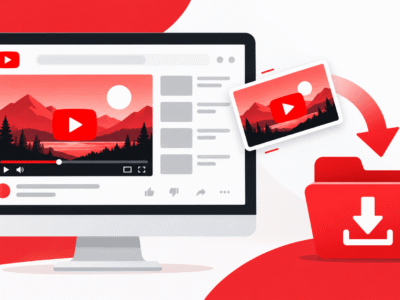
This tool extracts the full spoken-word transcript from any YouTube video that has captions — whether they’re auto-generated by YouTube’s speech recognition or manually uploaded by the creator. Paste a link, and within seconds you get clean, readable text you can copy or export.
Why Creators Need Transcripts
Transcripts aren’t just for accessibility — they’re a content goldmine:
- Repurposing: Turn one video into a blog post, thread, LinkedIn article, or email newsletter in minutes.
- SEO: Search engines can’t “watch” a video, but they can read a transcript. Publishing transcripts on your site helps your video content get indexed for text search too.
- Research: Quickly find exact quotes, timestamps, or hooks from long-form videos without re-watching them.
- Translation & localization: Use the extracted text as a base for subtitles in other languages.
Step-by-Step Tutorial: How to Use the Transcript Downloader
- Find the YouTube video with the captions/transcript you need.
- Copy its full URL.
- Go to Signal’s Transcript Downloader.
- Paste the video URL into the input box.
- Click “Generate Transcript.”
- Wait a few seconds while the tool pulls the caption track.
- Copy the text directly, or use the export/download option to save it as a file.
- Paste it into your blog editor, script tool, or notes app for repurposing.
Best Use Cases
- Writing blog posts from existing videos (“content atomization”)
- Pulling accurate quotes for articles or social captions
- Studying competitor scripts and pacing
- Creating searchable video libraries for teams or students
- Speeding up subtitle/localization workflows
Frequently Asked Questions
Do I need the video owner’s permission to extract a transcript?
The tool only pulls publicly available caption data. For any redistribution or commercial reuse of someone else’s transcript, respect copyright and attribute the source.
Why can’t I get a transcript for some videos?
Transcripts only exist for videos that have captions enabled — either auto-generated or manually added.
Is the transcript 100% accurate?
Accuracy depends on YouTube’s auto-caption quality or the creator’s manual captions — auto-generated captions can contain minor errors, especially with accents or jargon.
Can I extract transcripts from YouTube Shorts?
Yes, as long as the Short has captions enabled.
Is this tool free with no limits?
It’s free to use with fair daily-use limits to keep the service available to everyone.
Keep Building Your Workflow
Once you’ve pulled your transcript, feed the topic back into the Title Generator for follow-up video ideas, or check what’s currently trending using the Trending Videos Tool.