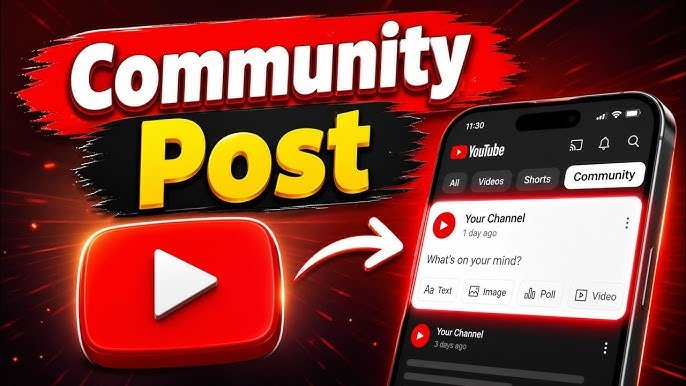

YouTube Community Posts (also known as the Community tab or Posts tab) are one of the most powerful yet underused tools for growing your channel in 2026. They let you share quick updates, polls, images, GIFs, and more directly with your audience keeping your channel active between video uploads and helping boost engagement, visibility, and subscribers.
What Are YouTube Community Posts and How Do They Work?
YouTube Community Posts are short-form updates that appear on your channel’s Posts tab. They show up in subscribers’ home feeds, notifications, and sometimes even non-subscribers’ feeds, acting like a mini social network tied to your YouTube channel.
Unlike full videos or Shorts, these posts are lightweight: text, images, GIFs, polls, quizzes, or short video clips. They build community, tease content, gather feedback, and keep your channel “alive” in the algorithm’s eyes.
How they boost subscribers:
- Higher engagement signals to YouTube that your channel is active → better recommendations.
- Direct calls-to-action (CTAs) like “Subscribe for more!” or polls that encourage interaction.
- Consistent posting keeps you top-of-mind, turning casual viewers into loyal subscribers.
Posts can be scheduled, pinned, or set to expire (e.g., 24-hour stories-style). They support comments, likes, and replies, fostering real conversations.
Important Fundamentals Beginners Must Understand
Before posting, grasp these basics:
- Eligibility: In 2026, most channels can access this, even smaller ones (often no strict 1,000-subscriber minimum anymore, though verifying your account and enabling advanced features helps). Avoid “Made for Kids” channels or those with strikes. Check YouTube Studio → Settings → Channel → Feature eligibility.
- Algorithm Impact: Posts contribute to overall channel activity. Engaged communities get more push for new videos.
- Visibility: Posts appear on your channel page under the Posts tab. You can feature the Posts shelf prominently on your homepage via YouTube Studio → Customization → Layout.
- Content Types:
- Text
- Images (with stickers/filters)
- GIFs
- Polls/Quizzes
- Video clips or links
- Viewer posts (newer feature allowing community contributions)
- Analytics: Track impressions, likes, comments, and response rates in YouTube Studio.
Key Takeaway: Treat Community Posts as relationship-builders, not just promotions. Authenticity wins.
Step-by-Step Guide to Get Started with YouTube Community Posts
On Desktop (YouTube Studio):
- Go to studio.youtube.com and sign in.
- Click the Create button (top right) → Create post.
- Write your message. Add media via the icons below (image, GIF, poll, etc.).
- Add a CTA or link (e.g., to a video).
- Click Post or the arrow for Schedule.
- Manage all posts under Content → Posts.
On Mobile (YouTube App):
- Open the app and tap your profile or the + Create icon.
- Select Post.
- Compose and add elements.
- Post or schedule.
Pro Tip: Pin important posts (like a welcome message) so they stay at the top.
Best Practices and Strategies to Boost Subscribers
- Post Consistently: 1-3 times per week. More risks spam flags; less loses momentum.
- Mix Formats: Use polls for interaction, images/GIFs for visuals, text for quick updates.
- Tease & Repurpose: Share behind-the-scenes, bloopers, or clip snippets. Link to recent/old videos.
- Encourage Interaction: Ask questions, run polls (“Which topic next?”), reply to every comment early on.
- Time It Right: Post when your audience is active (check Analytics → Audience).
- SEO for Posts: Include relevant keywords naturally.
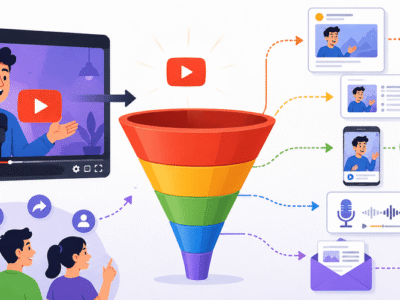
Actionable Framework: The Engagement Funnel
- Awareness (Text/Image teaser)
- Interaction (Poll/Question)
- Conversion (CTA to watch video/subscribe)
- Loyalty (Exclusive or follow-up)
Real Example: A gaming creator posts a poll: “Which boss fight next: Dragon or Goblin?” Winners get a shoutout in the video → higher watch time and subs.
Practical Examples and Real Use Cases
- Teaser: “Sneak peek at tomorrow’s tutorial! What do you want to learn?” + image → drives views.
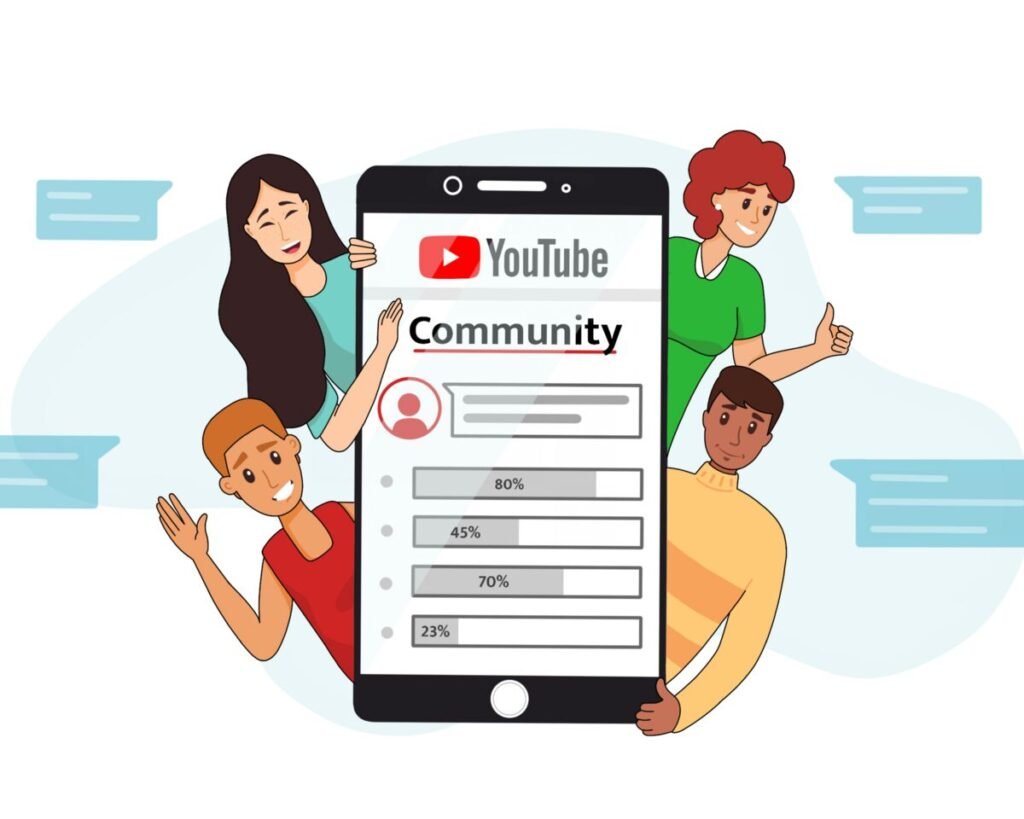
- Poll for Ideas: “New video: Budget tech or high-end?” → Audience feels involved.
- Behind-the-Scenes: Share a funny fail GIF + “Editing struggles today 😂”.
- Resurrect Content: “Missed this? My top productivity hack from last year” + link.
- Milestone: “Hit 5K subs! Thank you here’s what’s next” + poll for celebration ideas.
Use Case: Fitness channels use polls for workout preferences, building loyalty and subscriber retention.
Common Mistakes Beginners Make (and How to Avoid Them)
- Too Promotional: All “Watch my video!” posts feel spammy. Balance with value.
- Inconsistency: Posting once then ghosting. Set a simple calendar.
- Ignoring Comments: Unreplied comments kill momentum.
- Poor Timing/Overposting: Spamming reduces reach.
- No Visuals: Plain text gets skipped always add images or GIFs when possible.
- Engagement Bait: Avoid “Like if you agree” without substance.
- Forgetting Mobile Optimization: Most viewers are on phones.
Checklist to Avoid Mistakes:
- Is it valuable or fun?
- Does it have a visual?
- Clear CTA?
- Under 2 posts/day?
Tips to Improve Results with YouTube Community Posts
- Analyze & Iterate: Review top-performing posts in Studio Analytics.
- Cross-Promote: Share posts on other socials.
- Exclusive for Members: Offer perks for paid subscribers.
- Use Urgency: “Poll closes in 24 hours!”
- A/B Test: Try different hooks.
- Pin & Highlight: Keep high-engagement posts visible.
- Collaborate: Tag other creators or feature fan content.
Advanced Tip: Use posts to test thumbnails or titles before full videos.
Top Tools and Resources for YouTube Community Posts
Here are beginner-friendly tools to level up:
- vidIQ: Browser extension for analytics, keyword ideas, and post performance insights. Use it to find best posting times and track competitors. Great for beginners spotting growth opportunities.
- TubeBuddy (similar to vidIQ): Helps with tags, thumbnails, and bulk management. Ideal for scheduling ideas and A/B testing.
- Buffer or Hootsuite: Schedule Community Posts (where supported) and cross-post to other platforms. Perfect for consistency without daily logins.
- Canva: Create eye-catching images, GIFs, and polls visuals quickly. Free templates for YouTube.
- Google Analytics / YouTube Studio Built-in: Free and essential. Dive deep into post impressions and engagement rates.
Start with free versions of vidIQ or Canva, then scale.
Key Takeaways and Your Action Plan
YouTube Community Posts are a low-effort, high-reward way to boost subscribers by building genuine connections and feeding the algorithm.
30-Day Starter Plan:
- Enable the feature and make your first 3 posts this week (one poll, one image, one teaser).
- Reply to all comments.
- Review analytics weekly.
- Aim for 8-12 posts in the month.
Consistency + value = subscriber growth. Readers often see noticeable engagement lifts within weeks.
Start today your first post could be: “Just starting my YouTube journey! What’s one topic you’d love a beginner video on?”
FAQs
Q1: Do I need 1,000 subscribers to use YouTube Community Posts in 2026?
A: No. Most channels can access Posts now, even smaller ones. Verify your phone number and check Feature Eligibility in YouTube Studio. Avoid “Made for Kids” settings.
Q2: How often should I post on the Community tab?
A: 1–3 times per week is ideal for beginners. Consistency matters more than quantity focus on quality and engagement.
Q3: Can Community Posts help me gain subscribers?
A: Yes! They increase visibility in feeds, build relationships, and drive traffic to your videos through CTAs and polls.
Q4: How do I check performance of my posts?
A: Go to YouTube Studio → Content → Posts. Sort by likes, comments, or impressions. Detailed analytics are in the Analytics tab under Posts.
Q5: What types of content perform best?
A: Polls and questions drive the highest interaction. Mix in images, GIFs, and teasers. Reply promptly to comments.
Q6: Can I schedule Community Posts?
A: Yes. When creating a post, click the arrow next to “Post” and select Schedule.