
Creating YouTube videos doesn’t require expensive software or years of training. With the right free video editing apps, beginners can produce professional-looking content right from their phone or computer. In 2026, powerful free tools make it easier than ever for YouTubers to edit, add effects, improve audio, and upload high-quality videos.
What Are Free Video Editing Apps for YouTubers?
Best free video editing apps for YouTubers are software tools that let you trim clips, add music, text, transitions, effects, and export videos optimized for YouTube without paying a cent.
They work by letting you:
- Import raw footage from your camera or phone.
- Arrange clips on a timeline.
- Enhance with visuals, audio, and titles.
- Export in YouTube-friendly formats (like MP4, 1080p or 4K).
Many include AI features in 2026, such as auto-captions, background removal, and smart suggestions, making editing faster for creators.
Mobile apps are great for quick edits on the go (shorts, vlogs). Desktop apps offer more power for longer, polished videos.
Important Fundamentals Beginners Must Understand
Before diving in, grasp these basics:
- Timeline Editing: Your video is built on a horizontal timeline. Drag clips, cut unwanted parts, and layer audio/text.
- Resolution & Aspect Ratio: Use 1080p (Full HD) or 4K for YouTube. 16:9 for regular videos, 9:16 for Shorts/Reels.
- Key Frames & Transitions: Keyframes animate effects (e.g., text fading in). Transitions (cuts, fades) connect clips smoothly.
- Audio Levels: Keep voice clear (around -6 to -12 dB) and music lower to avoid overpowering.
- Export Settings: Match YouTube recommendations H.264 codec, MP4 format, high bitrate for quality without huge files.
Actionable Tip: Start with short 1-2 minute videos to practice without overwhelm.
Top Free Video Editing Apps for YouTubers in 2026
Here are the best options, split by mobile and desktop. I’ve included what each does best and when to use it.
Mobile Apps (Perfect for Beginners & On-the-Go Editing)
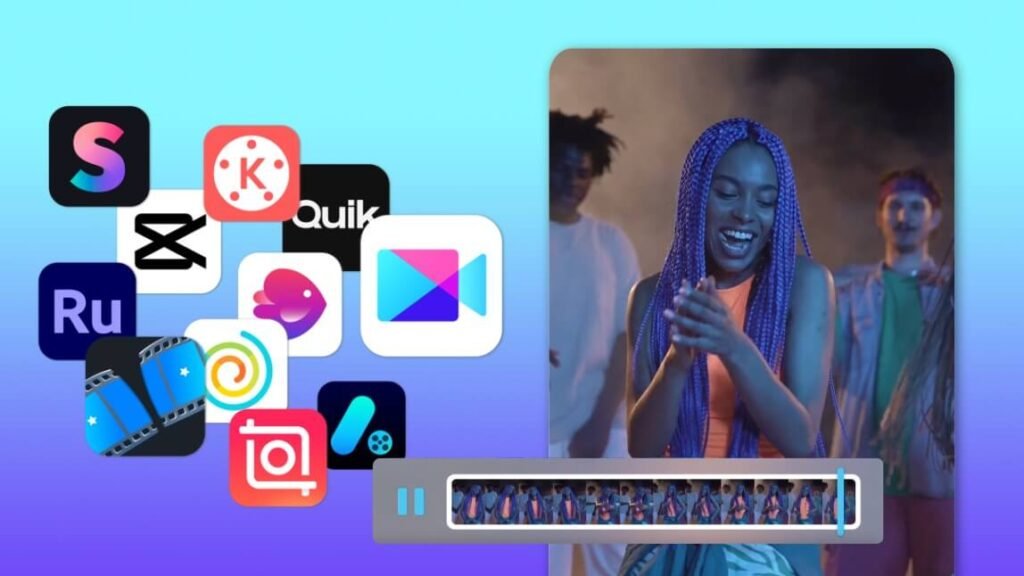
1. CapCut (by ByteDance, TikTok’s parent) is one of the most popular free apps. It offers templates, AI auto-captions, effects, music library, keyframe animation, and no watermark on exports. When to use: Shorts, quick vlogs, trendy effects. Desktop version available too. Pros: Extremely beginner-friendly, huge creative assets. Cons: Some advanced features push premium, but core is fully free.
2. VN Video Editor Clean, no-watermark interface with precise timeline control, multi-layer tracks, and speed ramping. Great for longer-form content. When to use: YouTube videos needing professional cuts without distractions. Pros: Intuitive, powerful for mobile, exports in high quality. Cons: Fewer flashy templates than CapCut.
3. InShot User-friendly for beginners. Excellent for adding music, text, stickers, transitions, and basic effects. When to use: Simple edits, photo slideshows, or quick social videos.
Desktop Apps (For More Polished, Professional YouTube Videos)
1. DaVinci Resolve (Free Version) Widely regarded as the best free professional editor. Includes editing, color correction, Fairlight audio, Fusion visual effects, and more. Used by Hollywood and YouTubers alike. When to use: In-depth editing, color grading, complex audio mixing for longer videos. Pros: Extremely powerful, frequent updates, no watermarks. Cons: Steeper learning curve (but worth it).
2. Clipchamp (Microsoft) Web-based and app-based editor with templates, screen recording, AI voiceovers, and stock assets. Integrates well with Windows. When to use: Quick edits, screen recordings, or simple YouTube content. Pros: Easy, cloud features, free for basic use. Cons: Some premium exports require subscription.
3. Shotcut or OpenShot (Open-Source) Completely free, no limits. Shotcut offers advanced filters; OpenShot is simpler with 3D titles. When to use: As alternatives if you want full control without big installs.
Step-by-Step Guide to Get Started with Best Free Video Editing Apps
Getting Started on Mobile (Using CapCut as Example)
- Download CapCut from App Store/Google Play.
- Open the app → Tap “New Project” and import clips.
- Drag clips to timeline. Trim by dragging edges.
- Add music: Tap Audio → Sounds → Search trending tracks.
- Add text: Tap Text → Add → Customize font, animation.
- Add effects/transitions: Tap Effects or Transitions between clips.
- Preview → Export at 1080p or 4K.
Real Example: A travel vlogger records phone footage, trims boring parts in CapCut, adds upbeat music and captions, exports in under 15 minutes for a YouTube Short.
Getting Started on Desktop (Using DaVinci Resolve)
- Download free from Blackmagic Design website.
- Create new project → Set timeline resolution to 1920×1080.
- Media Pool: Import files.
- Edit page: Drag clips to timeline, use Razor tool (scissors icon) to cut.
- Color page: Basic color correction for better look.
- Add titles, effects, and audio adjustments.
- Deliver page: Export for YouTube (H.264, high quality).
Pro Tip: Follow free YouTube tutorials for the specific app many 10-20 minute beginner courses exist.
Best Practices and Strategies for YouTubers
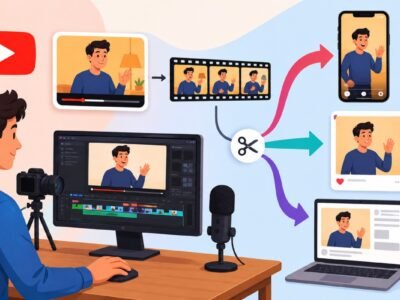
- Workflow Framework: Record → Organize footage → Rough cut → Refine (audio/color) → Polish (effects/text) → Export & Upload.
- Keep videos engaging: Hook in first 5-10 seconds, use B-roll, maintain good pacing.
- Use consistent branding: Intro/outro templates, channel colors.
- Optimize for YouTube: Add end screens, cards, and chapters in editor if possible.
- Batch edit: Edit multiple videos in one session for efficiency.
Checklist for Every Video:
- Clear audio (voice > music)
- Good lighting & stable shots
- Engaging visuals/transitions
- Subtitles/captions
- Proper export settings
- Test playback on phone & computer
Common Mistakes Beginners Make (And How to Avoid Them)
- Over-editing: Too many effects distract. Stick to purposeful ones.
- Ignoring audio: Bad sound kills videos. Use noise reduction tools.
- Poor organization: Name files and use folders.
- Exporting wrong format: Always check YouTube specs.
- Not backing up projects.
Fix: Start simple. Master cuts and basic audio before fancy effects.
Practical Examples and Real Use Cases
- Gaming YouTuber: Use DaVinci Resolve for screen recordings + facecam overlays, color grade gameplay.
- Vlogger: CapCut on mobile for quick travel edits with trending audio.
- Tutorial Creator: Clipchamp for screen recording + voiceover syncing.
- Shorts Creator: InShot or CapCut for fast, vertical content.
Tips to Improve Results with Free Video Editing Apps
- Learn keyboard shortcuts for speed (e.g., Space to play/pause).
- Use free assets: Epidemic Sound free tier, YouTube Audio Library, Pexels for stock footage.
- Practice color grading: Even basic adjustments make videos pop.
- Analyze successful channels: Pause and note their editing style.
- Update apps regularly for new AI features in 2026.
- Combine tools: Shoot/edit mobile, finish on desktop.
Key Takeaways:
- Start with CapCut or VN for mobile, DaVinci Resolve for desktop growth.
- Focus on storytelling over flashy effects.
- Consistency beats perfection edit and upload regularly.
- Free tools in 2026 are powerful enough for monetized channels.
Tools / Resources to Use Effectively
- YouTube Audio Library: Royalty-free music.
- Canva: Thumbnails & simple graphics.
- TubeBuddy or VidIQ: SEO tools (free tiers).
- Blackmagic Design Forums: DaVinci Resolve community help.
- Free Tutorials: Search “CapCut beginner tutorial 2026” or similar.
Final Thoughts
The best free video editing apps for YouTubers remove every barrier to starting. Whether you’re on mobile with CapCut for speed or desktop with DaVinci Resolve for pro results, you have everything needed to create compelling content in 2026.
Pick one app today, follow the step-by-step guide, and edit your first video this week. Your audience is waiting start creating!
FAQs
Q1: What is the best completely free video editing app for beginners in 2026?
A: CapCut is the top choice for most beginners due to its easy interface, powerful features, and availability on both mobile and desktop. For more advanced editing, DaVinci Resolve (free version) is unbeatable.
Q2: Can I make professional YouTube videos with free apps?
A: Yes! Many successful YouTubers use free tools like DaVinci Resolve and CapCut. Focus on good storytelling, clear audio, and consistent uploads rather than paid features.
Q3: Which app is best for YouTube Shorts?
A: CapCut or InShot. They offer vertical templates, trending effects, and fast export optimized for short-form content.
Q4: Does DaVinci Resolve have a learning curve?
A: Yes, but it’s manageable. Start with the Edit page only. Plenty of free beginner tutorials (10-30 minutes) will get you editing quickly.
Q5: Are there any watermarks on exports?
A: CapCut, VN, DaVinci Resolve, Shotcut, and OpenShot allow watermark-free exports in their free versions.
Q6: Can I edit 4K videos with these free apps?
A: Yes DaVinci Resolve and CapCut handle 4K well on decent hardware. Export settings matter for best results.
Q7: Which is better: mobile or desktop editing?
A: Mobile (CapCut/VN) for quick edits and ideas. Desktop (DaVinci Resolve) for polished, longer videos with better control.