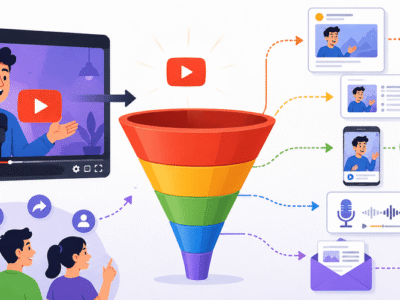

YouTube Analytics is one of the most powerful free tools available to creators. This youtube analytics guide will walk you through everything you need to know to understand your channel data, make smarter decisions, and drive consistent data growth. Whether you just uploaded your first video or have been posting for months, this complete reference will help you turn numbers into real progress.
What Is YouTube Analytics and How Does It Work?
YouTube Analytics is the built-in dashboard in YouTube Studio that shows how your videos and channel perform. It tracks viewer behavior, content reach, engagement, audience details, and revenue (if you are monetized).
The platform collects data every time someone watches, clicks, searches for, or interacts with your content. This information powers YouTube’s algorithm, which decides which videos to recommend. Key signals include watch time, click-through rate (CTR), and audience retention. Videos that keep people watching longer tend to get pushed to more viewers.
In simple terms: Analytics tells you what is working so you can create more of it and fix what is not.
Important Fundamentals Beginners Must Understand
Before diving into the dashboard, grasp these core concepts:
- Watch Time: Total minutes viewers spend watching your content. This is the most important metric for the algorithm.
- Views: Simple count of video starts, but a view with 30 seconds of watch time is far less valuable than one with 5 minutes.
- Click-Through Rate (CTR): Percentage of people who click your video after seeing the thumbnail and title. A good CTR for beginners is often 5-10% or higher, depending on niche.
- Audience Retention: Graph showing how much of your video people watch on average. Look for patterns sharp drops mean the content lost interest at that point.
- Traffic Sources: Where viewers come from (YouTube search, suggested videos, external links, etc.).
- Subscriber Growth: Net gain or loss over time.
- Impressions: How many times your thumbnails appeared in feeds or search results.
Key Takeaway: Focus on quality over vanity metrics. A video with fewer views but higher watch time often grows your channel faster in the long run.
Step-by-Step Guide to Get Started with YouTube Analytics
- Access YouTube Studio Log into YouTube on desktop → click your profile picture → select YouTube Studio. On mobile, use the YouTube Studio app.
- Navigate to Analytics In the left menu, click Analytics. You will see tabs: Overview, Reach, Engagement, Audience, and Revenue.
- Set Your Time Period Use the date selector at the top. Start with the last 28 days or 7 days for recent insights. Compare periods (e.g., this month vs. last month) to spot trends.
- Explore the Overview Tab This gives a high-level summary: total views, watch time, subscribers gained, and top videos. Use the cards to switch between metrics.
- Dive Deeper
- Reach Tab: Impressions, CTR, and how content is discovered.
- Engagement Tab: Watch time, likes, comments, shares, and audience retention graphs.
- Audience Tab: Demographics (age, gender, location), when viewers are active, and returning vs. new viewers.
- Revenue Tab (monetized channels): Earnings, RPM (revenue per mille), and ad performance.
- Check Individual Video Analytics Go to Content in the left menu, click a video, then switch to the Analytics sub-tab for detailed retention curves and traffic sources.
Actionable Tip: Bookmark YouTube Studio on your browser and check analytics once a week at a fixed time. Avoid checking daily to prevent overthinking short-term fluctuations.
Key Sections and What They Tell You (With Examples)
Overview Shows big-picture performance. Example: If watch time increased 40% but subscribers only grew by 5, focus more on calls-to-action in videos.
Reach Helps improve discoverability. Example: Low CTR (under 4%) on a video with many impressions means your thumbnail or title needs work. Test a new thumbnail and monitor changes.
Engagement The heart of analytics youtube tips. Look at audience retention. Example: If viewers drop off at 45 seconds, your intro is too long or the hook is weak. Move the best part to the first 15 seconds.
Audience Understand who watches. Example: If most viewers are 18-24 years old and active at 8 PM, schedule uploads or posts around that time.
Revenue For monetized channels. Example: High RPM in certain countries or topics can guide future content ideas.
Best Practices and Strategies for Data Growth
- Prioritize Watch Time: Create videos that deliver value quickly and maintain interest.
- Optimize Thumbnails and Titles: Aim for clear, curiosity-driven designs. Test variations.
- Analyze Top Performers: Replicate what worked format, length, style, topics.
- Use Traffic Sources: If “Browse features” drives most views, focus on strong hooks. If search drives views, improve SEO with better titles, descriptions, and tags.
- Create Content Series: Consistent formats help retention and subscriber growth.
- Set Goals: Example goal “Increase average view duration by 20% this month by tightening intros.”
Framework for Weekly Review:
- List top 3 videos by watch time.
- Note common traits (length, topic, style).
- Check retention drops and fix in next videos.
- Review traffic sources and adjust promotion.
- Track subscriber velocity.
Common Mistakes Beginners Make
- Obsessing over daily views instead of trends.
- Ignoring retention graphs and assuming more views equal success.
- Not comparing periods or videos.
- Focusing only on their own channel without studying competitors.
- Uploading inconsistently and expecting steady growth.
- Chasing trends without aligning with their niche or audience.
Avoid these by treating analytics as a guide, not a daily scorecard.
Practical Examples and Real Use Cases
Example 1: Cooking Channel A beginner notices high retention on recipe videos but low on “day in the life” vlogs. They shift to 80% recipe content and see watch time double in two months.
Example 2: Tech Reviewer Analytics shows most traffic from YouTube search. By researching keywords with tools and optimizing titles, impressions and CTR improve significantly.
Example 3: Gaming Channel Retention drops during long gameplay. Shortening videos and adding timestamps increases average view duration and comments.
Tips to Improve Results with YouTube Analytics
- End screens and cards can boost session watch time.
- Respond to comments to increase engagement signals.
- Use analytics to plan upload schedule based on audience activity.
- Experiment and document: Change one element (thumbnail, length, hook) per video batch and measure results.
- Track long-term growth: Look at 90-day or yearly trends for data growth.

Top Tools and Resources for YouTube Analytics
1. YouTube Studio (Free) Your main dashboard. Use it daily for core metrics and retention graphs. Perfect starting point for all beginners.
2. VidIQ Excellent for keyword research, tag suggestions, and competitor analysis. Use the free version for basic insights or upgrade for deeper search volume data. Ideal when planning new videos.
3. TubeBuddy Browser extension with thumbnail A/B testing, tag explorers, and bulk processing. Great for optimizing existing videos and SEO.
4. Social Blade Free tool for tracking channel statistics over time and comparing with competitors. Useful for benchmarking growth.
5. Google Analytics Link your YouTube channel (or website) for deeper traffic behavior if you drive viewers to external sites. Helps understand full customer journey.
Bonus: Combine YouTube Studio with one paid tool like VidIQ or TubeBuddy once you upload consistently.
Key Takeaways and Next Steps
This youtube analytics guide equips you with the knowledge to understand and act on your data. Remember:
- Watch time and retention drive long-term success.
- Use insights to iterate faster.
- Be consistent and patient growth compounds with smart adjustments.
Immediate Action Plan:
- Open YouTube Studio today and review your last 28 days.
- Identify your best and worst performing videos.
- Create your next video based on what the data shows works.
- Schedule a weekly analytics review.
Mastering YouTube Analytics turns guessing into strategy. Apply these lessons, stay consistent, and watch your channel experience steady data growth in 2026 and beyond.
FAQs
1. What is YouTube Analytics?
YouTube Analytics is YouTube’s free built-in tool that shows how your videos and channel are performing, including views, watch time, audience retention, and traffic sources.
2. Where can I find YouTube Analytics?
Log into YouTube Studio (studio.youtube.com) and click “Analytics” in the left menu.
3. What is the most important metric in YouTube Analytics?
Watch time is the most important metric because it tells YouTube your content keeps viewers engaged.
4. What is a good CTR for beginners?
A good click-through rate (CTR) for new channels is usually between 5% to 10%. Higher is better.
5. How often should I check YouTube Analytics?
Check once a week for trends. Avoid daily checks as short-term numbers can be misleading.
6. Can YouTube Analytics help me grow my channel?
Yes. It shows what content works so you can make more of it and fix what doesn’t, leading to better data growth.
7. Are VidIQ and TubeBuddy necessary?
They are not required but very helpful. Start with free YouTube Studio, then add one of them for keyword research and advanced insights.
8. What should beginners focus on first?
Focus on improving Audience Retention and Watch Time. These two metrics have the biggest impact on channel growth.